
nvlddmkm.sys in a crash dump means
NVIDIA's Windows display driver was involved. It does not, by itself,
prove that your graphics card or its VRAM is dying. In the case behind this
guide, the crashes were tied to DaVinci Resolve being open or recently used.
Manually selecting the real NVIDIA GPU, testing OpenCL instead of CUDA, and
fully closing Resolve when it wasn't in use stopped the crashes. Treat this as
a diagnostic path and a case-specific workaround, not a universal fix for every
nvlddmkm.sys crash.
Search for an nvlddmkm.sys crash and the internet will give you the
same three answers over and over: reinstall the NVIDIA driver, reinstall
Windows, or return the graphics card. Sometimes one of those answers is right.
The problem is that people tend to jump from "the NVIDIA driver crashed" to
"the NVIDIA card is broken," and those are not the same statement.
In this case, an RTX 4070 kept crashing with different Blue Screen of Death
(BSOD) codes, but the dump files repeatedly landed in
nvlddmkm.sys. A proper driver cleanup did not fix it. The repeated
crash signature made failing GPU memory look increasingly plausible.
One detail did not fit, though: the machine handled gaming, rendering, and GPU stress tests without falling over. It crashed while sitting at the desktop or moving in and out of an idle state. That did not clear the hardware, but it was enough to stop me from immediately boxing up a healthy card and hoping a replacement would somehow solve the same software problem.
Can DaVinci Resolve cause an nvlddmkm.sys crash?
Short answer: DaVinci Resolve can be the application that triggers a repeatable NVIDIA driver crash, but the dump file alone cannot prove that Resolve is the root cause. You need to compare when the crashes happen, whether they stop when Resolve stays closed, and whether changing Resolve's GPU configuration changes the result.
On this machine, that pattern was strong enough to isolate Resolve as part of the problem. Once the GPU configuration was changed and Resolve was no longer left running in the background, the crashes stopped.
What is nvlddmkm.sys?
nvlddmkm.sys is part of NVIDIA's Windows display driver. It sits in
the graphics path between Windows, applications, and the GPU. If WinDbg names
it in a crash dump, Windows crashed while that driver was executing or handling
a bad state passed into it.
That identifies the neighborhood where the crash happened. It does not always
identify who started the fire. The actual cause could still be the driver, an
application exercising a specific driver path, unstable memory, an
overclock/undervolt, power delivery, overheating, or defective hardware.
Microsoft's documentation for
SYSTEM_SERVICE_EXCEPTION (0x3B)
makes the same general point: the named driver and stack are evidence to
investigate, not a complete diagnosis by themselves.
The crash pattern I was dealing with
The important details were:
-
Repeated BSODs over multiple days, including
WIN32K_CRITICAL_FAILURE(0x164),SYSTEM_SERVICE_EXCEPTION(0x3B), and occasionallyPAGE_FAULT_IN_NONPAGED_AREA(0x50). -
The dumps repeatedly named
nvlddmkm.sysand showed a similar failure signature. - A clean NVIDIA driver reinstall did not change the pattern.
- The GPU remained stable during gaming, rendering, and stress testing.
- The crashes happened while the computer was idle or moving out of idle—not while the GPU was being hammered.
- DaVinci Resolve was part of the software environment around the crashes.
The repeated offset and failure bucket were useful because they showed that I was probably looking at one recurring failure pattern rather than a pile of unrelated crashes. They still did not prove whether the underlying cause was software or hardware.
Why the idle timing mattered
A graphics card does not run at full speed all day. It moves between performance and power states depending on workload. At the desktop, clocks and power usage drop. When an application needs the GPU again, the card and driver have to bring the relevant parts of the graphics stack back up and continue working.
My working theory was that Resolve's GPU workload was colliding with one of those transitions. The crash dumps did not prove the exact mechanism, so I would not present "cached CUDA memory during a P-state wake" as a confirmed NVIDIA or Blackmagic bug. What the evidence did show was simpler: the crash pattern tracked Resolve and idle behavior, and changing Resolve's GPU path stopped it.
What Event Viewer can and cannot tell you
Event Viewer is useful for matching the crash time against application, driver,
display, sleep, and wake events. It is not useful to point at
Kernel-Power Event ID 41 and declare that you found the cause.
Microsoft explains that
Event ID 41 only records that Windows restarted without shutting down cleanly
.
A BSOD, power loss, hard reset, or several other failures can produce it.
Use Event ID 41 to anchor the timeline. Then inspect the events immediately before it and compare them with the corresponding dump file. The event is a timestamp, not a verdict.
How I isolated DaVinci Resolve
The most useful test cost nothing: leave Resolve fully closed for longer than the machine would normally go between crashes.
- Write down the date and time of each crash.
- Confirm in Task Manager that Resolve and its related background processes are actually closed.
- Use the computer normally without opening Resolve. Do not change five other settings during the same test.
- If the machine stays stable beyond its normal crash interval, Resolve becomes a serious suspect. It is still not proof, but it is useful evidence.
If the computer normally crashes every one or two days, a week with Resolve closed is meaningful. If it only crashes once a month, two quiet days tell you basically nothing. Match the test window to the actual frequency of the problem.
The changes that stopped the crashes
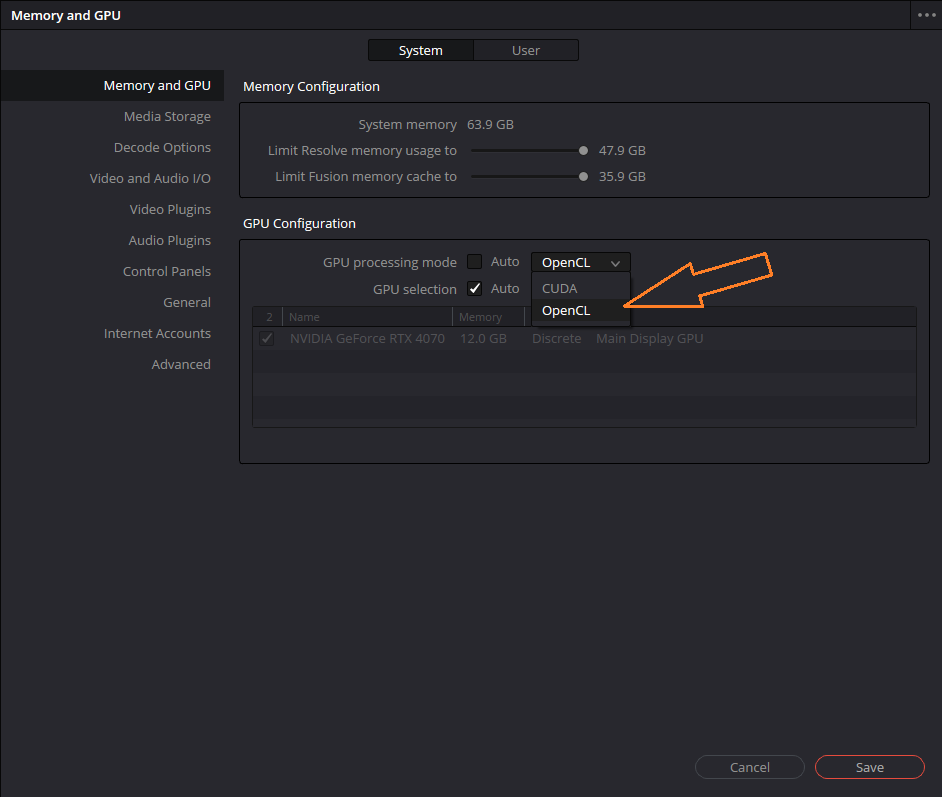
In Resolve, open Preferences → System → Memory and GPU. These are the three changes that mattered in this case.
1. Set GPU selection to Manual
Change GPU selection mode from Auto to Manual, then select only the physical NVIDIA graphics card. This is especially worth checking if remote-access, virtual-display, or other graphics software has installed an additional adapter.
Resolve's Auto setting is normally fine. Manual selection simply removes ambiguity and makes sure Resolve is using the GPU you actually intend it to use.
2. Test OpenCL instead of CUDA
Change GPU processing mode from CUDA to OpenCL, restart Resolve, and test it.
This is a workaround and diagnostic test—not the normal performance recommendation for an NVIDIA card. Blackmagic's DaVinci Resolve 20 Reference Manual recommends CUDA for NVIDIA GPUs on Windows. OpenCL uses a different compute path, which is exactly why it can be useful here, but it may perform differently in your projects. If OpenCL is stable and CUDA is not, you have learned something useful about the failure even if you later return to CUDA after a driver or Resolve update.
3. Fully close Resolve when you are finished
Do not leave Resolve sitting open in the background while you walk away from the computer. Close it completely and verify that its related processes are gone. This removed the condition that consistently surrounded the idle crashes on this machine.
You can check from PowerShell with this read-only command:
Get-Process | Where-Object { $_.Name -match 'resolve|fusion|fuscript|davinci|blackmagic' }If the command returns nothing, those matching processes are no longer running. If it returns a process, check Task Manager before assuming Resolve has fully closed.
Make one change at a time if you want to identify which one matters. If you change everything at once and the crashes stop, you know the group of changes worked, but you do not know which individual change fixed the problem.
Do the driver work before blaming Resolve
Resolve should not be your first suspect merely because it happens to be installed. Start with the supported graphics path:
- Remove any GPU overclock or undervolt and return the card to stock settings.
- Install a current NVIDIA Studio Driver, or a known-stable Studio Driver if the crashes began immediately after an update. NVIDIA describes its Studio Drivers as the branch tested for creator workflows.
- If a normal reinstall does not help, follow the clean graphics-driver reinstall guide .
- Update Resolve and test again with its default CUDA configuration.
If the same crash pattern survives a clean driver installation but disappears
when Resolve stays closed or when Resolve uses OpenCL, that is much stronger
evidence than simply seeing nvlddmkm.sys in one dump.
Software trigger or failing graphics card?
Idle-only crashes do not prove that the hardware is healthy. They simply make the "obviously dead GPU" diagnosis less convincing. Look at the entire pattern.
| Evidence leaning toward software or configuration | Evidence leaning toward hardware, power, or cooling |
|---|---|
| Crashes track one specific application | Crashes occur across unrelated games and applications |
| The machine remains stable with that application closed | The machine crashes regardless of what software is running |
| A specific software setting reliably changes the result | The card shows artifacts, corrupted textures, or display output problems |
| GPU and VRAM tests pass at stock settings | GPU or VRAM tests produce errors, artifacts, or repeatable crashes |
| The crashes began after a driver or application update | The problem follows the graphics card into another known-good computer |
If the card produces artifacts, fails VRAM testing, overheats, crashes under load in unrelated programs, or carries the problem into another computer, stop trying to talk yourself into the cheap answer. Start the warranty return while you still have one.
What I would do, in order
- Read the dump with WinDbg and record the stop code, faulting module, process, failure bucket, and crash time.
- Return the GPU to stock settings.
- Install a current or known-stable NVIDIA Studio Driver.
- Test the machine under load and run a dedicated VRAM test.
- Leave Resolve completely closed for a meaningful test period.
- Set Resolve to Manual GPU selection and choose only the physical NVIDIA GPU.
- Test OpenCL as a temporary diagnostic workaround.
- If the problem persists outside Resolve or the hardware tests fail, move the investigation back toward the GPU, power supply, temperatures, and system RAM.
If you are not sure what the crash data means, the PC crash diagnostic tool can help you organize the symptoms before you start changing the system.
Frequently asked questions
Does nvlddmkm.sys mean my NVIDIA GPU is dying?
No. It means NVIDIA's display driver was involved in the crash. Hardware failure is one possibility, but so are a driver defect, unstable settings, another application, bad system memory, power problems, and several other causes.
Should I switch DaVinci Resolve from CUDA to OpenCL?
On Windows with an NVIDIA GPU, CUDA is the normal recommended mode. OpenCL is worth testing when Resolve is tied to a repeatable driver crash because it uses a different compute path. If OpenCL stops the crashes, keep the possible performance tradeoff in mind and retest CUDA after future driver or Resolve updates.
Does Kernel-Power Event ID 41 prove that my power supply caused the crash?
No. Event ID 41 means Windows detected that the previous shutdown was not clean. It can follow a BSOD, power loss, hard reset, or system hang. Use the event's timestamp to find better evidence; do not treat the event itself as the cause.
When should I return or RMA the graphics card?
A Return Merchandise Authorization (RMA) becomes reasonable when the card shows
artifacts, fails GPU or VRAM tests at stock settings, crashes across unrelated
workloads, or reproduces the problem in another known-good computer. One
nvlddmkm.sys dump is not enough by itself.
-
nvlddmkm.sysidentifies NVIDIA's display driver, not an automatically defective graphics card. - In this case, the idle crash pattern tracked DaVinci Resolve and stopped after Resolve's GPU configuration and background behavior changed.
- Manual GPU selection is a sensible cleanup step; OpenCL is a diagnostic workaround on NVIDIA, not the default performance recommendation.
- Test one variable at a time, compare crash-free time against the old crash interval, and only RMA the card when the wider evidence points to hardware.